Overview Of This Week
This week I learnt how to debug as well as implement a fully working movement system with my character.
Unreal C++
Debugging
In Unreal engine, there are two main ways to debug code: “GEngine->AddOnScreenDebugMessage()” and “UE_LOG()”. Both of these methods can be used to the developer’s preference. Whilst experimenting with both, I realised that my Editor would keep crashing when compiling even though there were no red errors in visual studio. Through iteration and looking at the code I realised that I made two errors within my code. The first was that the UE_LOG was after the return in the function that I used which would make the UE_LOG not show. The second error was trying to add a FString variable within the UE_LOG. My theory to why it was crashing was because the variable that I used was in the header file as well as no under any headings such as “public:” or “protected:”. After fixing all these errors, the code started to work and would print out the desired debug messages. The final code will be shown below:


Excuse some of the madness in my code comments as the editor crashed 10+ times in a row.
From this testing, I found that I prefer to use the UE_LOG() when typing literal strings of text as it is much quicker to type than GEngine -> AddOnScreenDebugMessage(); I had no errors when using the latter with FString variables as well as being much more intuitive with not having to use “TEXT(%s”) and then having a pointer to my variable and, instead, just inputting the necessary string variable.
Enhanced Movement Input
Making movement for the character relies on Blueprints and C++. I will mainly be focusing on the C++ side as I am most proud of this achievement. To have the code work in the first place, there are certain things that I found that I needed to do. First, was to input the necessary headers which I code commented to be implemented when I create a next project and will forget. The next arduous task was to rebuild the CS file and implement a new subsystem.

The code comment describes how unnecessarily Unreal likes to treat things. After these two steps are done with the mapping context and necessary input actions made in the editor, The code for movement can start to be made.


The necessary UPROPERTIES need to be made. One for the mapping context and one for the input action you are making. In the CPP file (Begin play) you will want to initialise the mapping context to the subsystem that you added. The code beneath will show what I mean:

With each character class, it comes with a functionality to bind inputs. In this input, this is where the input action will be binded to an event:

Whenever the input action is activated in the game, it will call the non return event called Move (This is a custom function made by me).
The function Move is what allows for movement by the WASD keys. The code comments that I made describe how it all works below:
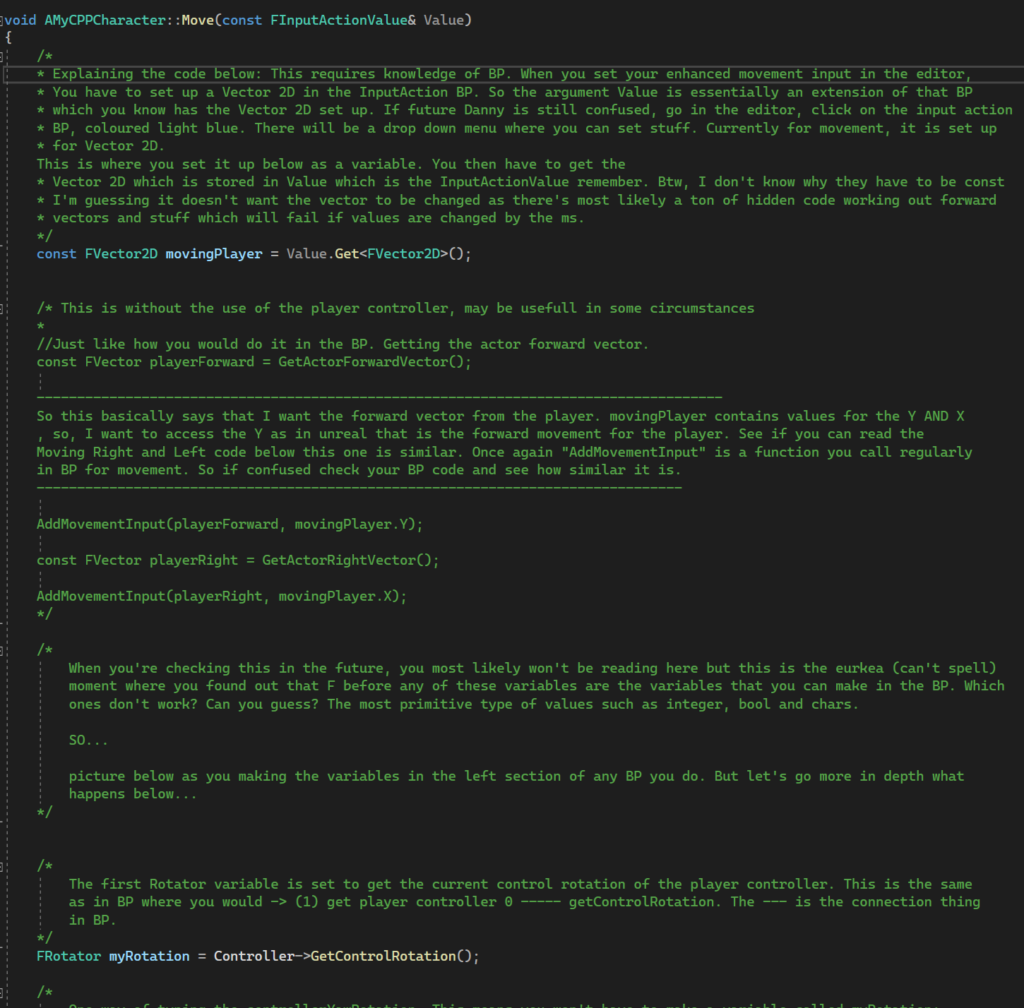

All the code above is still not enough to make the character move in the game. The final step is to go into the character in the Blueprint (BP) and set the necessary mapping context and input actions within the properties. After all of that is finished, movement finally works for the character.
Extra Things I Have Learnt Or Problems I Have Solved This Week
- Whilst trying to grasp the movement for the character I found out a theme with any Unreal Property that starts with the “F” key. When looking in the Blueprint I saw that it is the variables that can be made by the developer. The variables that are an exception are the most primitive types of data such as a Boolean and integer. This helped me a lot as I can now visualise how the code translates to Blueprints. This can be seen as a miniscule achievement for a more experienced dev, but it meant a lot to me. This is due to the fact that I can go in blueprints and see what functions can be made from a certain Unreal Library such as the Vector variable. This is important as intellisense, in visual studio, doesn’t always show the possible code you can make from the Unreal classes and functions.
- Due to learning and making a Blueprint version of the enhanced movement input, I could correlate and see the translation of how the code works when making it in C++
Plans For Next Week
Next week I aim to complete the enhanced movement inputs by adding camera movement functionality. As well as that, I would also like to implement action mappings for keys such as left shift for sprinting.